Programming
How to change time and timezone in iPhone simulator
Developing and testing iOS applications often requires manipulating the device’s time and timezone settings. When working with the iPhone simulator, it’s crucial to know how to change time and timezone in iPhone simulator to accurately test features like scheduling, notifications, and location-based services. The iPhone simulator, a powerful tool within Xcode, allows developers to mimic the behavior of an actual iPhone on their computer. However, unlike a physical device, altering the time and timezone within the simulator isn’t always intuitive. This guide will provide a comprehensive walkthrough of the different methods you can use to adjust these settings, ensuring your app functions flawlessly regardless of the user’s location or time.
Why Change Time and Timezone in iPhone Simulator?
There are numerous reasons why you might need to adjust the time and timezone within the iPhone simulator during app development. A primary reason is to test how your application handles different time zones. Many apps rely on displaying local times or performing actions based on specific time zones. Without the ability to simulate various time zones, it’s difficult to ensure that these features work correctly for users around the globe. For example, a scheduling app needs to accurately display appointment times in the user’s local time, regardless of the server’s timezone.
Another crucial aspect is testing time-sensitive features. Consider apps with features like expiring promotions, scheduled notifications, or time-limited access. To effectively test these features, you need to be able to quickly advance or rewind the system time. The simulator allows you to do this without having to wait for real-time to pass, significantly speeding up the testing process. According to Apple’s documentation, proper testing across different time zones and time settings is crucial for a robust user experience (Apple Developer Documentation).
Finally, changing the time and timezone is essential for debugging purposes. When issues arise related to time or location, being able to reproduce the problem in a controlled environment like the simulator is invaluable. By manipulating the time and timezone, you can isolate the cause of the bug and implement a fix more efficiently. This process can save developers countless hours and improve the overall quality of the application. Consider the development of a dating app where time-based matching is a core feature. Accurately simulating various time zones becomes vital to ensure proper functionality.
Methods to Change Time and Timezone
There are several methods available for how to change time and timezone in iPhone simulator. Each method offers a different level of control and convenience. Understanding these options allows you to choose the most efficient approach for your specific testing needs. The most common methods involve using Xcode’s debugging tools, command-line utilities, and even third-party tools designed for iOS simulation.
Method 1: Using Xcode’s Debug Menu: This is perhaps the simplest method for basic time adjustments. Xcode provides a built-in debug menu that allows you to simulate specific dates and times. While it doesn’t offer precise control over the timezone, it’s a quick way to test how your app responds to different times. This is particularly useful for testing features that trigger at specific times of the day, such as daily reminders or nightly updates.
Method 2: Using the xcrun Command-Line Tool: The xcrun command-line tool offers more advanced control over the simulator’s settings. By using specific commands, you can directly set both the time and timezone of the simulator. This method is ideal for automated testing scenarios where you need to programmatically adjust these settings. For instance, if you’re running a suite of UI tests that require specific time conditions, the xcrun command-line tool allows you to set those conditions before each test. Below is a featured snippet-optimized paragraph:
To change the timezone using the xcrun command, you would use the command xcrun simctl timezone <device_id>
- Xcode Debug Menu: Quick and easy for basic time adjustments.
- xcrun Command-Line Tool: Offers precise control over time and timezone, ideal for automation.
Step-by-Step Guide to Changing Timezone with xcrun
Using the xcrun command-line tool provides the most precise control over the simulator’s timezone. This method is particularly useful for developers who need to automate their testing process or require specific timezone configurations. Here’s a step-by-step guide on how to change time and timezone in iPhone simulator using xcrun:
- Open Terminal: Launch the Terminal application on your Mac.
- Get the Simulator’s UUID: Use the command xcrun simctl list to display a list of available simulators and their corresponding UUIDs. Identify the simulator you want to modify and copy its UUID.
- Set the Timezone: Use the command xcrun simctl timezone <device_id>
. Replace <device_id> with the simulator’s UUID and </device_id>with the desired IANA timezone identifier (e.g., “America/New_York”). For example: xcrun simctl timezone D0531F97-2097-49E6-8C5F-189A29A737E8 America/New_York. </device_id> - Verify the Change: Launch the simulator and check the system time in the Settings app to confirm that the timezone has been updated successfully.
By following these steps, you can easily change the timezone of your iPhone simulator using the xcrun command-line tool. This method is particularly useful for testing applications that rely heavily on timezone information, such as calendar apps or international travel apps. According to a Stack Overflow thread, this is the most reliable method for programmatic timezone changes (Stack Overflow).
Remember to use valid IANA timezone identifiers. A comprehensive list of these identifiers can be found on the IANA website. Incorrect identifiers will result in an error, and the timezone will not be changed. Using this method ensures that your app behaves correctly in different timezones, enhancing the user experience for your global audience. Furthermore, using this method is crucial for automated testing.
Advanced Techniques and Troubleshooting
While the above methods are generally reliable, you might encounter issues when trying to change time and timezone in iPhone simulator. Understanding some advanced techniques and troubleshooting tips can help you overcome these challenges. One common issue is that the simulator might not immediately reflect the changes you’ve made. This can be due to caching or other background processes.
Troubleshooting Tips: If you’re experiencing issues, try restarting the simulator. This often clears any cached data and forces the simulator to refresh its settings. Another tip is to ensure that you’re using the correct UUID for the simulator. If you have multiple simulators running, it’s easy to accidentally target the wrong one. You can verify the UUID by running xcrun simctl list again. If the issue persists, check your Xcode version. Outdated versions of Xcode might have compatibility issues with the xcrun command-line tool.
Advanced Techniques: For more complex scenarios, consider using a scripting language like Python or Ruby to automate the process of changing the time and timezone. This can be particularly useful for running a large number of tests with different time and timezone configurations. You can also explore third-party tools that offer more advanced features for simulating various device conditions. These tools often provide a graphical interface for managing time and timezone settings, making the process more user-friendly. Using a tool like CocoaPods for dependency management can also streamline the process of incorporating third-party libraries into your project (CocoaPods).
- Restart the simulator to clear cached data.
- Verify the simulator’s UUID to ensure you’re targeting the correct device.
- **Q: Why isn't the time changing in my iPhone simulator after using the xcrun command?**
- A: Ensure you're using the correct UUID for the simulator and a valid IANA timezone identifier. Restarting the simulator can also resolve caching issues.
- **Q: Can I change the time and timezone directly within the simulator's settings app?**
- A: No, the settings app in the simulator often reflects the host machine's time and timezone. Use Xcode's debug menu or the xcrun command-line tool for accurate control.
- **Q: How do I find the UUID of my iPhone simulator?**
- A: Use the command xcrun simctl list in Terminal to display a list of available simulators and their corresponding UUIDs.
- **Q: Is it possible to automate the process of changing time and timezone in the simulator?**
- A: Yes, the xcrun command-line tool is scriptable, allowing you to automate these changes using scripting languages like Python or Ruby.
Now that you know how to change time and timezone in iPhone simulator, consider exploring other aspects of iOS development and testing. Experiment with location simulation, network conditions, and device orientations to create a truly comprehensive testing environment. Your users – and your app’s success – will thank you for it! You can also learn more about accessibility testing here.
Question & Answer :
How do I change time and time zone in the iPhone simulator?
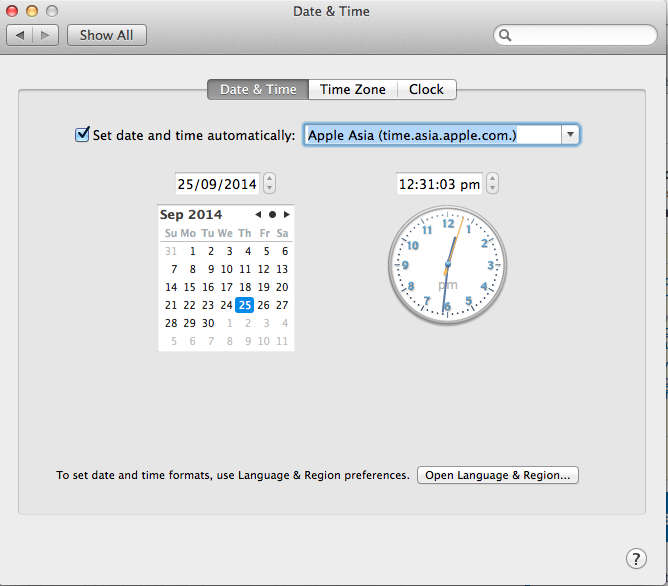
I’m guessing it uses your system timezone, so changing the TZ in System Preferences would probably do the trick